
You’ve just bought some tokens on a centralized exchange and are wondering how to manage them securely yourself. MetaMask is a popular crypto wallet for investors who want to be the sole custodian of their cryptocurrency. Its user-friendly interface, which comes both as a browser extension and a mobile app, has made it a go-to choice for both beginners and experienced investors.
However, while some tokens are automatically recognized by MetaMask, others need to be added manually. Adding custom tokens to your MetaMask wallet is crucial if you want to see your full portfolio or transact with less common cryptocurrencies. This guide will walk you through the process of how to add tokens to MetaMask in 2024.
What tokens are supported by MetaMask?
MetaMask supports all Ethereum and ETH-based tokens, including all tokens created using the ERC-20 token standard, ERC-721 tokens (NFTs), and more. However, while it does not support Bitcoin and other non-ETH-based cryptocurrencies, there are ways to see them on your balance through community-built add-ons.
By default, some notable cryptocurrencies such as Ether (ETH), USDT, and DAI are recognized by MetaMask. However, other less notable cryptocurrencies will need to be added manually by the user. Here are the steps to do so:
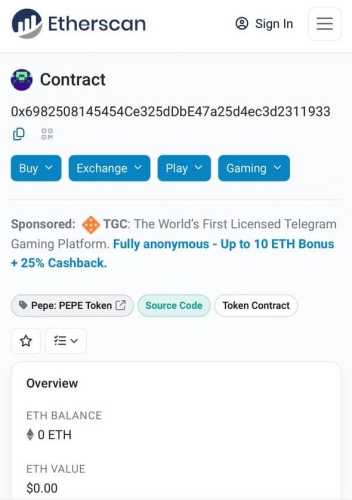
First, to add a custom token, you need to find the token’s contract address. This can typically be found on a block explorer like Etherscan, the project’s official website, or a token indexing website like CoinMarketCap. Here’s an example of how to do it via Etherscan.
Once on the MetaMask platform, you will need to do the following:
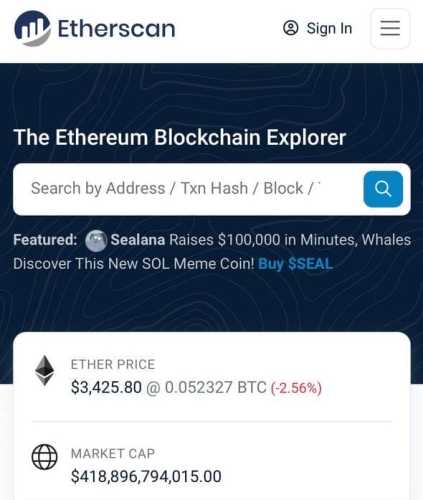
Say you want to search for Ethereum meme coins like Pepe — simply type in the token name and click to view the price page.
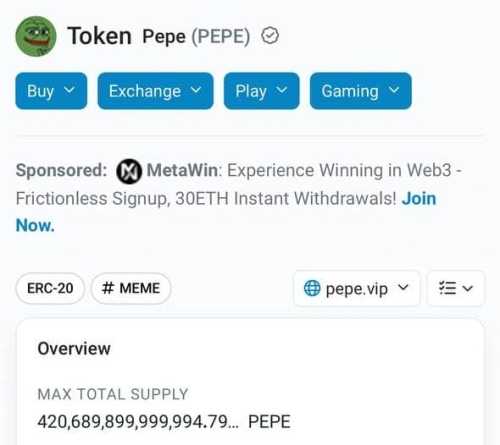
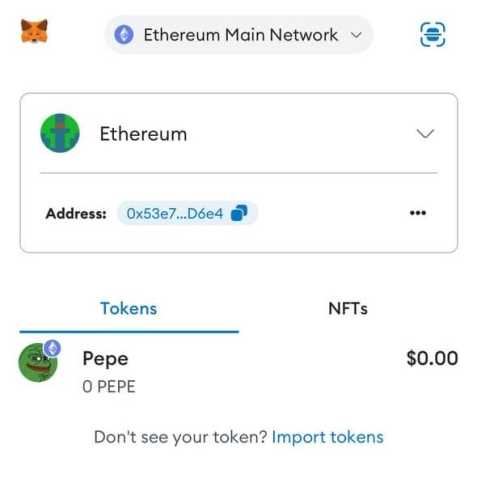
After obtaining the token contract address, head back to MetaMask and navigate to the Tokens tab.
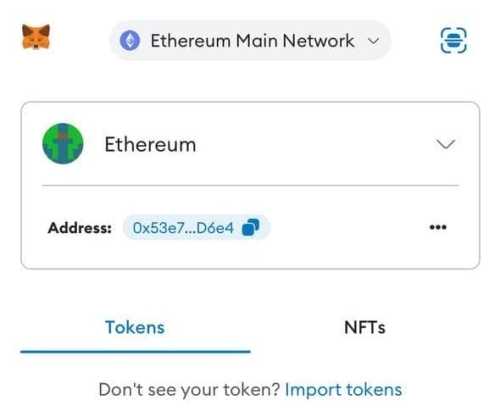
You will now be able to import the token to MetaMask. Simply click the “import tokens” button as seen in the image above.
Next, enter the token information using the contract address. All you need to do is paste the contract address you copied earlier into the “Token Contract Address” field. MetaMask should automatically fill in the Token Symbol and Decimals of Precision.
You’re now at the end of the process — all you need to do is confirm the addition of the custom token by clicking the “Add Tokens” button.
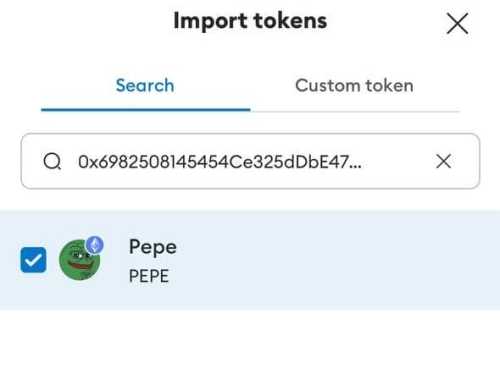
That’s it! You have successfully added a custom token to your MetaMask wallet. Now, you can see your token balance and transact with it as needed. Let’s now look at how to add crypto funds to MetaMask.
Due to its versatility, the MetaMask wallet allows users to store and manage a range of digital assets securely. One of the first steps to using MetaMask effectively is transfering or purchasing crypto.
Adding crypto to MetaMask can seem daunting for beginners, but it’s a straightforward process once you understand the steps. Read on to learn how to fund your MetaMask wallet with crypto efficiently, whether you’re purchasing cryptocurrency on another exchange or directly through the MetaMask interface.
One of the most common ways to add funds to MetaMask is to purchase cryptocurrency on an exchange using fiat currency (USD, EUR, etc.) and then transfer the crypto to MetaMask.
For a more detailed guide on buying crypto on an exchange, refer to our crypto buying guide where we detail the steps to buy cryptocurrency.
Alternatively, MetaMask also allows you to buy cryptocurrency directly through its interface, simplifying the process of funding your wallet.
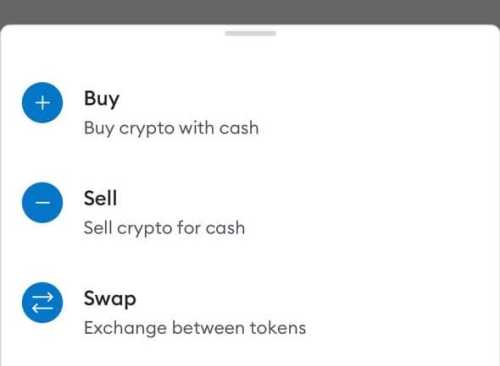
Overall, adding funds and custom tokens to MetaMask is, though daunting at first, a straightforward process. Whether you’re using an exchange or buying crypto directly within the MetaMask platform, you can easily manage and store a wide variety of Ethereum-based cryptocurrencies.
By following the steps outlined above, you will be able to use your MetaMask wallet for all your crypto storage needs. Doing so within a secure and user-friendly platform helps simplify the management of your digital assets. If you are still wondering if MetaMask is safe to use, read our guide which explores this topic.
To manually add a token to MetaMask, go to the “Assets” tab, click “Add Token,” and enter the token contract address, symbol, and decimal.
To deposit tokens to MetaMask, copy your MetaMask wallet address, go to your other wallet or exchange, and initiate a transfer to your MetaMask address.
If you can’t import tokens on MetaMask, it might be because you have incorrect token contract details. Ensure you have the correct contract address and try again.
To get tokens to show up on MetaMask, you need to manually add them by clicking “Add Token” in the “Assets” tab and entering the token details.
Source: cryptonews.com
Your email address will not be published.
[…] January 2022, the number of cryptocurrencies existing in the market increased by 1 thousand. This implies that each new…
Your writing is like a breath of fresh air in the often stale world of online content. Your unique perspective…
I would like to share my story and express my great gratitude to Maria. My husband Alexander was literally taken…